
Operation Guide for MindSpore Quantum Local Installation
Operation Guide for MindSpore Quantum Local Installation
1. Installing the Python programming environment
(If you have installed Python or Anaconda, skip this step.)
Go to the Python official website and select a proper version based on your operating system (Windows, Mac, or Linux). Python 3.9.0 is recommended. (MindQuantum supports Python 3.7 to 3.9.)
(If you cannot access the Python official website or the download speed is slow, you are advised to download the installation package of the corresponding version by using images of Huawei Mirrors or the third-party source (https://registry.npmmirror.com/binary.html?path=python/3.9.0/)).
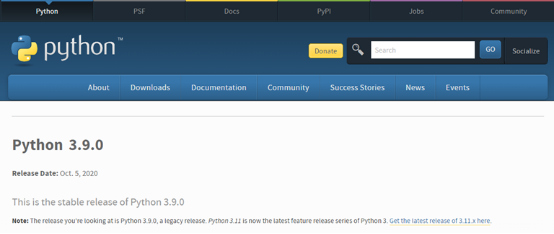
Scroll down to the bottom of the page, as shown in the following figure, and select the corresponding version for installation.
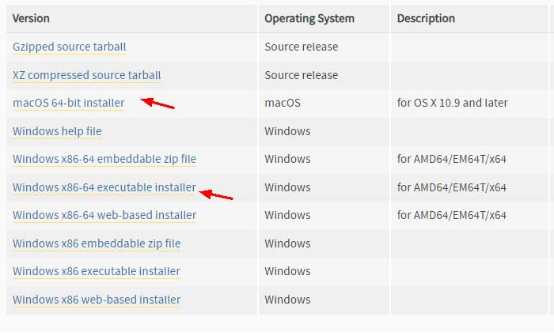
Python installation packages on the official website
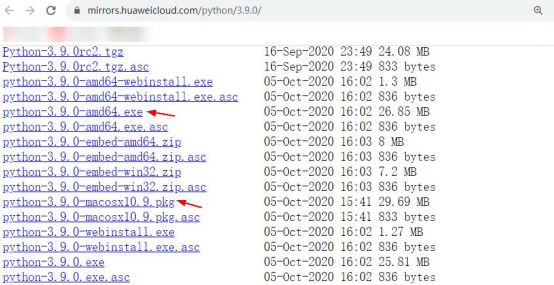
Python installation packages on Huawei Mirrors
Note: During the installation, select Add Python 3.9 to PATH to automatically set the environment variables.
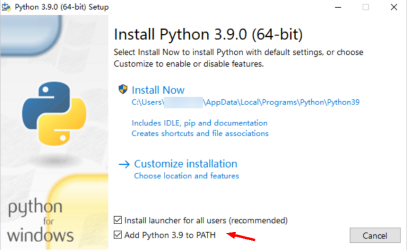
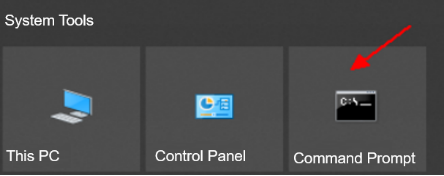
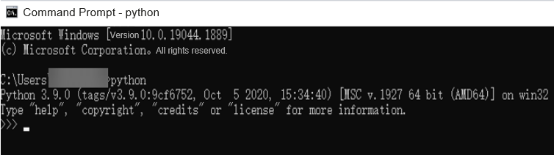
After installation, click the Windows icon at the lower left corner, select the Command Prompt and enter python to access the interactive environment, as shown in the following figure.
If the version number is displayed, the installation is successful. Otherwise, the installation fails.
Enter quit () to exit the interactive environment.
2. Installing MindQuantum
Open the terminal and use pip to install the software. Enter the following command:
pip install mindquantum
# If a message is displayed indicating that the network is faulty, you can set the download source to Huawei source, or Tsinghua source.
pip install mindquantum --trusted-host https://mirrors.huaweicloud.com -i https://mirrors.huaweicloud.com/repository/pypi/simple
pip install mindquantum -i https://mirrors.tuna.tsinghua.edu.cn
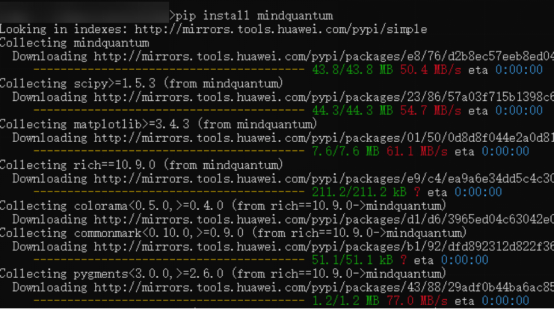
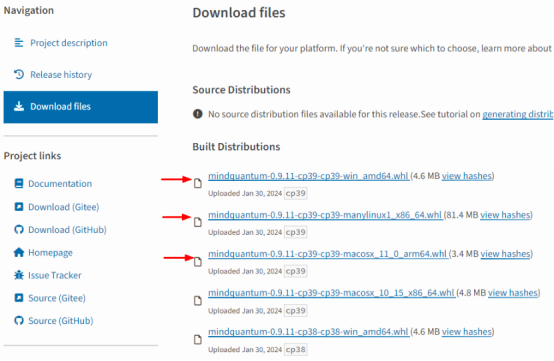
If an error occurs during online pip installation, download the .whl package for local installation.
Click the following link to download the .whl package of the corresponding OS.
https://pypi.org/project/mindquantum/0.9.11/#files
Operation Guide for MindSpore Quantum Local Installation MindSpore
Posted on 2024-06-14 10:04:0134
1. Installing the Python programming environment
(If you have installed Python or Anaconda, skip this step.)
Go to the Python official website and select a proper version based on your operating system (Windows, Mac, or Linux). Python 3.9.0 is recommended. (MindQuantum supports Python 3.7 to 3.9.)
(If you cannot access the Python official website or the download speed is slow, you are advised to download the installation package of the corresponding version by using images of Huawei Mirrors or the third-party source (https://registry.npmmirror.com/binary.html?path=python/3.9.0/)).
Scroll down to the bottom of the page, and select the corresponding version for installation.
Note: During the installation, select Add Python 3.9 to PATH to automatically set the environment variables.
After installation, click the Windows icon at the lower left corner, select the Command Prompt and enter python to access the interactive environment.
If the version number is displayed, the installation is successful. Otherwise, the installation fails.
Enter quit () to exit the interactive environment.
2. Installing MindQuantum
Open the terminal and use pip to install the software. Enter the following command:
pip install mindquantum
# If a message is displayed indicating that the network is faulty, you can set the download source to Huawei source, or Tsinghua source.
pip install mindquantum --trusted-host https://mirrors.huaweicloud.com -i https://mirrors.huaweicloud.com/repository/pypi/simple
pip install mindquantum -i https://mirrors.tuna.tsinghua.edu.cn
If an error occurs during online pip installation, download the .whl package for local installation.
Click the following link to download the .whl package of the corresponding OS.
https://pypi.org/project/mindquantum/0.9.11/#files
Open the terminal, and run the command:
pip install ***\mindquantum-0.9.11-cp39-cp39-win_amd64.whl
# Example: pip install C:\Users\XXX\Downloads \mindquantum-0.9.11-cp39-cp39-win_amd64.whl
# *** indicates the path of the .whl package, for example, C:\Users\XXX\Downloads.
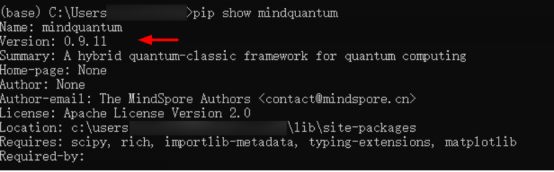
After the installation, run the following command on the terminal. If the MindQuantum version number is displayed, the installation is complete.
pip show mindquantum
3. Installing MindSpore
(Optional. In the quantum machine learning field, the neural network and optimizer of MindSpore can be used.)
Open the terminal, use pip to install the software, and enter the following command:
pip install mindspore
# If a message is displayed indicating that the network is faulty, set the download source to Huawei source.
pip install mindspore --trusted-host https://mirrors.huaweicloud.com -i https://mirrors.huaweicloud.com/repository/pypi/simple
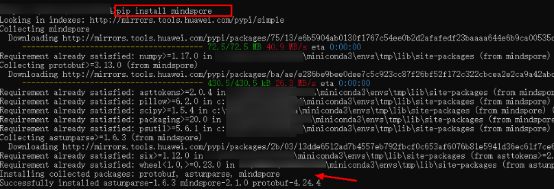
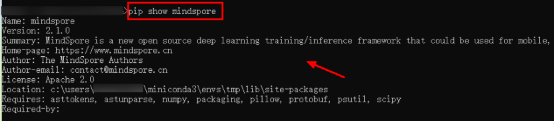
After the installation, run the following command on the terminal. If the MindSpore version number is displayed, the installation is complete.
pip show mindspore
4. Installing Jupyter
Install Jupyter on the local computer and use JupyterLab for programming, which is similar to that of setting the JupyterLab programming environment on the Quantum cloud.
pip install jupyter
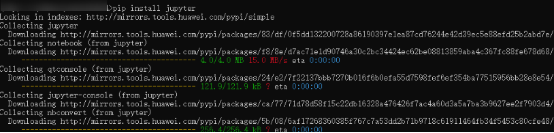
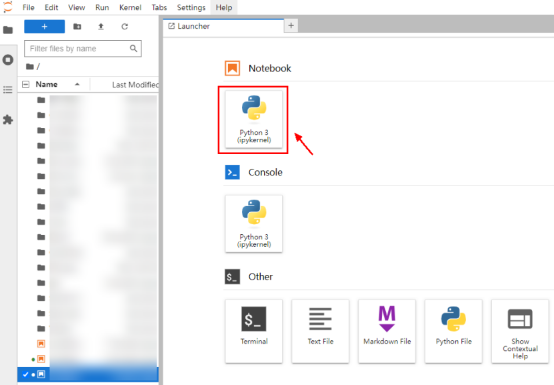
After Jupyter is installed, enter a command on the terminal to start the JupyterLab backend. The IDE frontend is automatically displayed on the browser, and the JupyterLab programming environment is ready. (Enter the same command next time to open the IDE frontend.)
jupyter-lab
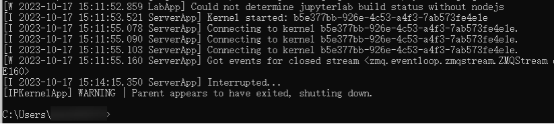
Disable JupyterLab
Open the terminal and press Ctrl+C to interrupt the Jupyter backend and end the process.
5.FAQ
More sample code: https://hiq.huaweicloud.com/tutorial/parameterized_quantum_circuit .
HiQ Quantum Computing Cloud Platform FAQs:
https://www.hiascend.com/developer/blog/details/0215122546533946059